




Rotating Brushes
In this Photoshop Tip I will demonstrate how to change the angle of any brush in the Brushes palette quickly and easily.Step 1
You all know that I’m a huge fan of keyboard shortcuts and simplifying the Photoshop workflow, but I don’t often get as excited about a Photoshop tip as I did when I learned this one.
I’ve always been annoyed at Photoshop Brushes because they’ve seemed so static. Sure, you can easily change the size of any brush by using the bracket keys "[" and "]" and that’s convenient, but half the time the brush is facing the wrong way or is set at a bad angle for a certain job, often times rendering it useless. Well, those days are past and the solution is so easy you’re going to feel a little retarded at never figuring this one out… or maybe that was just me. For those of you who knew about this, shame on you for not telling me about it!
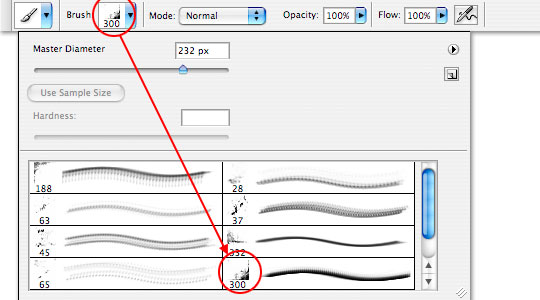
OK.. grab the brush tool by pressing B, then from the brushes drop down choose a brush that isn’t round. I’ll choose this nice grunge brush that’s bothered me for years because it only works on a right bottom corner…
Step 2
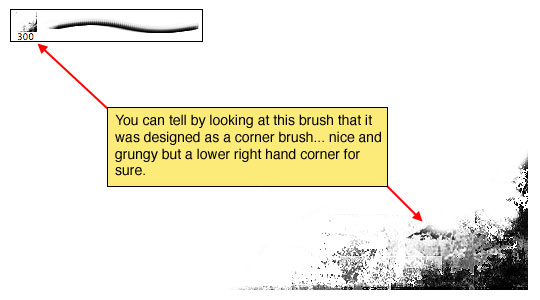
You can see in the Brushes palette that it\’s a lower right hand corner grunge brush and painted on the canvas it obviously is.
Step 3
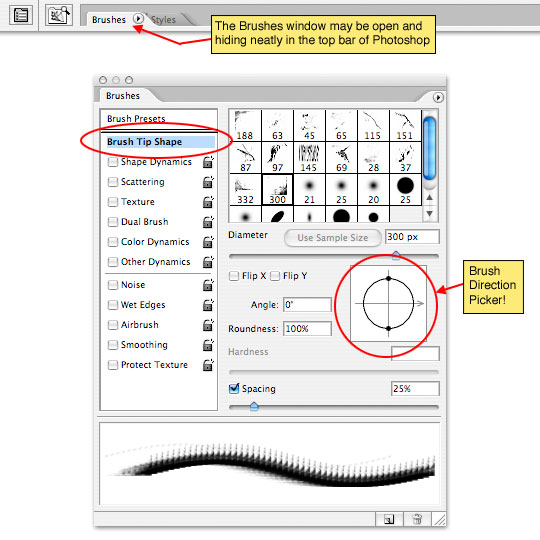
But, if we open the Brushes window by selecting Window>Brushes from the main menu (*note: this tool may already be open and tucked neatly away in the top bar, so check there too.)
Clicking on the Brush Tip Shape header opens up a whole window of hidden possibilities that will amaze and excite you… especially this great little circle over on the right! Yes, that’s right, you can just click and drag that neat little circle with the arrow in it until the brush is oriented exactly the way you’d like! Now every brush is multi-directional at the click of your mouse! What a GREAT trick!
Lesson Files + Additional Resources
There are no file downloads or additional resources for this Photoshop tutorial
Tell Your Friends
More in Tips & Tricks




48 Responses to Rotating Brushes
koekie
March 17th, 2008 at 4:23 am
Haha, I always brushed on a new layer and rotated that.
This would be way easier, thanks!
Cancerkitty
April 3rd, 2008 at 8:22 am
Holy cats, I’ve been wondering how you do that. I’ve actually been doing the same thing as Koekie.
aronil
April 9th, 2008 at 8:37 pm
They’ve had that option for quite some time, but yea not many people know about it :) I suppose if you spend a lot of time fiddling with photoshop you will notice it soon enough.
DARKCAST
April 19th, 2008 at 9:03 am
THEBLOGGERMUSTDIE.BLOGSPOT.COM
LOVE YOUR TUTORIALS
Fendrel
May 23rd, 2008 at 9:32 am
Clicking on the shape dynamics tool is pretty darn cool too, you can set it so that the angle of the brush will randomize with every click!
asano
June 16th, 2008 at 3:16 am
finding it 3 whole months after them…! its a gr8 tip. Thanks
Rebecca
July 16th, 2008 at 4:17 pm
I don’t feel so bad now. I still have some trouble with PhotoShop features but the brush tip I truly stumbled into it on my own when I got all frustrated with their brushes and learned how to make my own.
I’ll give you one better though! I’ve had PS for a few years, used it every now and again and just the other day finally figured out how to do the mask! It never seemed to work for me, until I learned…*blush* – “hide all” was set by default.
HERO
July 16th, 2008 at 4:27 pm
REBECCA,
You’re right, that’s definitely better! … AND funnier! I totally laughed. Thanks for sharing!
Kalynn
September 9th, 2008 at 11:24 pm
oh for…I’ve been doing the same thing as Koekie…rotating the whole layer. This is sooo gonna change my brush work! Love your tutorials.
siri
September 29th, 2008 at 10:45 am
this is the second place i’ve seen that has this nifty tool tip. however i can’t get the presets to open in cs3 on vista…? is this only good on mac? when i open the brushes window it just shows me all my loaded brushes, when i double click on one of the brushes it the ‘brush preset’ window opens, but all i can change is the name of the brush. guess i’ll be rotating layers for now then. -S
HERO
September 29th, 2008 at 4:08 pm
SIRI,
It sounds like you’re accessing the brushes through the Brush Picker Options Bar that appears at the top of PS when you’ve got the Brush tool selected. You need to actually open the Brushes Palette. Choose Window>Brushes from the main menu, then just click on the Brush Tip Shape link on the left side of the dialog to change the brushes angle.
Rob
October 2nd, 2008 at 7:24 pm
I agree this is a good tip, by Adobe really needs to make it easier to rotate the canvas.
HERO
October 3rd, 2008 at 1:26 pm
ROB, Because clicking Image>Rotate Canvas is too difficult? You know, you could always define a keyboard shortcut to make things just that much easier.
jls
November 15th, 2008 at 2:17 am
I love you
Devlin
December 11th, 2008 at 4:07 pm
Thanks so much. Amazing that for years I have been making extra layers and rotating and it never occurred to me to rotate brushes this way. I am so embarrassed! What a great time saver.
Raymond Selda
December 13th, 2008 at 10:46 am
Thank you for this trick. I will put this in my handy-dandy notebook!
Luc
December 26th, 2008 at 12:22 pm
I just wanted to take some time to thank you 4 your great tutorials and whish you a happy Birthday !!
Ottaviano
December 26th, 2008 at 3:41 pm
I’ve been wondering about this for some time, thanks for the fantastic tip. Can’t wait to try it out.
Eddi Hughes
March 5th, 2009 at 7:25 am
Nice, I wasn’t aware that you could rotate brushes. Thanks for the quick tip!!!!!!!!!!!!!!!!!!!!!!!!!!!!! ! !!
Momono
March 8th, 2009 at 7:40 am
And you can make it even easier to work with… you can also rotate the brush by keyboard only. Highlight the angle value in the brushes window and use the up and down arrow keys to rotate, use shift + arrow keys for bigger rotation steps :-)
Brock
April 9th, 2009 at 2:13 am
WOW! I was a click brush, then rotate layer person too. Those darn adobe guys are so smart, there is a million little things in PS to do basically anything. they must just get a good laugh when they “hide” the simple things we are always looking for.
Deborah
May 12th, 2009 at 3:34 pm
Ahhhh, this is sweet. If I wanted something to go 360* from a hub (like the veining feather) I ended up creating 8 additional brushes by rotating it and then defining it. This tip will save me gobs of time (and space on my brush palette!)
Wijang
July 2nd, 2009 at 3:41 am
Ah… yes.Thank’s again
wantana
August 20th, 2009 at 7:50 am
Oh my god!!! Thank you so much!!!
Suzanne
November 16th, 2009 at 11:28 pm
AHA! I was sure I’d stumbled upon a bunch of brush options once but when I needed them couldn’t figure out where the hell they were. I’d just about decided I imagined it. Heh. Great tip, and good to know I’m not losing my mind.
This is my first visit to your site, and I can see I’ll be hanging around for a while. Thanks!
evilkitty75
November 22nd, 2009 at 6:20 am
lol i knew of this but used it lil till recently when i stepped up my game n now
im a brush wizard!! lol lol thx babs
Topcat
January 5th, 2010 at 6:30 am
I read a tut the other day and the person who wrote it just said “…. if you know how to rotate the brush….”, I don’t think she knew how to rotate it herself..hahaha.
Thanks for this tip……heeeehaaaa
redi
January 15th, 2010 at 8:23 pm
thank you so much for the tips, it works!
Dawn Yilmaz
February 24th, 2010 at 6:35 pm
Thank you for liberating us from rotating unnecessary layers! Viva Hero!
matthew
March 1st, 2010 at 10:20 am
Thank you… Really, thanks…
Akash Mehta
March 12th, 2010 at 11:09 pm
Thanks dear,
for this useful tips,
tom
April 4th, 2010 at 4:16 pm
man i really do feel retarded, thankyou so much
elizabeth bloom
June 2nd, 2010 at 8:20 pm
I can’t seem to find the Brush Tip Picker in CS2. Am I crazy? I guess the CS5 upgrade is in my very near future.
HERO
June 3rd, 2010 at 10:46 pm
ELIZABETH, The Brush Picker is a part of Photoshop CS2 (not that I don’t think you should upgrade to CS5 ;). From the main menu simply choose Window > Brushes.
mrsbob
June 9th, 2010 at 8:29 pm
Heya Hero,
I know this tip was posted a couple of years back; yes I did know about it back then (but not your awesome site). I don’t know if you’ve picked this tip up since then, but have you tried pushing the dots on the circle in closer to the central crosshair? It’s a quick way to do the Roundness setting.
e11world
June 30th, 2010 at 5:42 pm
HERO, I don’t think there’s a keyboard shortcut to do this rotating the brush tip. Do you use or know of any?
Karen
July 12th, 2010 at 7:56 pm
You’re my hero! Thank you!
HERO
July 13th, 2010 at 11:20 am
E11WORLD… Nope, but that sure would be nice!
saqqara
September 21st, 2010 at 2:03 am
Thanks for this, I’m another who has always just printed each brush on different layers and adjusted them afterward LOL. Never even thought of doing this!
Corso
November 11th, 2010 at 12:21 pm
I LOVE YOU!!!!
Hector
November 11th, 2010 at 1:36 pm
wow, I love this! haha, i’m still a beginner at photoshop
daveconrey
November 11th, 2010 at 1:40 pm
So simple, I feel stupid for doing it the way I’ve always done it. Thanks.
sulabh
November 11th, 2010 at 10:44 pm
thanks. i always wondered why the ps was so stupid so as not to allow me use the brushes the way i wanted to. this is great
John
January 4th, 2011 at 9:43 am
Wow, Thanks. Knew how to change the brush angle by spinning the crosshair, but always frustrated as I used to have to go back and do minute adjustments. Didn’t know one could use up/down keys. Thanks for the great tip. makes it sooo much easier. :D
Beate
May 19th, 2011 at 7:13 pm
Hello,
I stumbled accross your site and love the brush types. Is there any where at all then I can download them. I love the effects. Thank you, Beate
HERO
June 13th, 2011 at 5:51 am
BEATE, At the moment the various brushes I use are only available in the groupings I’ve created for the tutorial. I have however considered creating a spot where I keep brush collections for easy download on the site… perhaps soon…
Robert Schwarztrauber
September 22nd, 2011 at 8:16 pm
That brush thing frustrated me for a whole year until I finally found the drop down box.
Wish I’d have seen this!
fallen_damien
October 2nd, 2011 at 9:51 pm
lol thankz..i never figured it out until i found this one:)